

Step 1. Now open the Remote Desktop Connection software
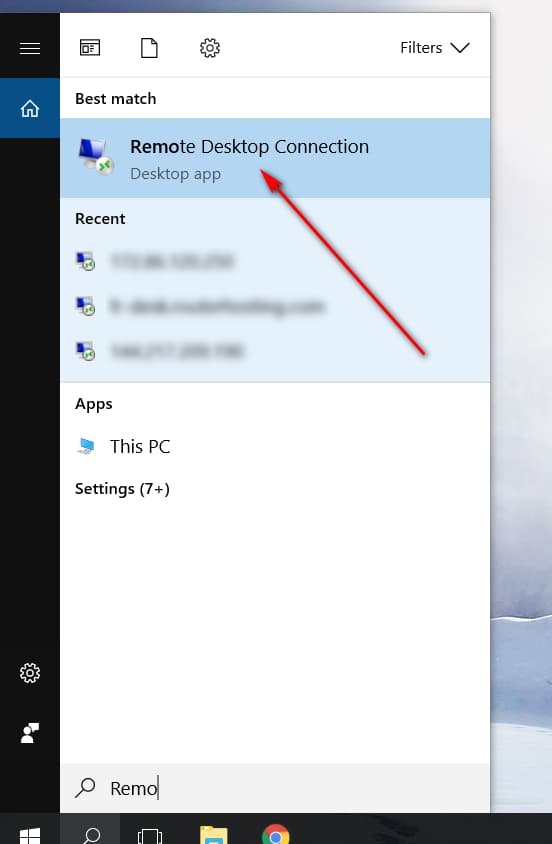
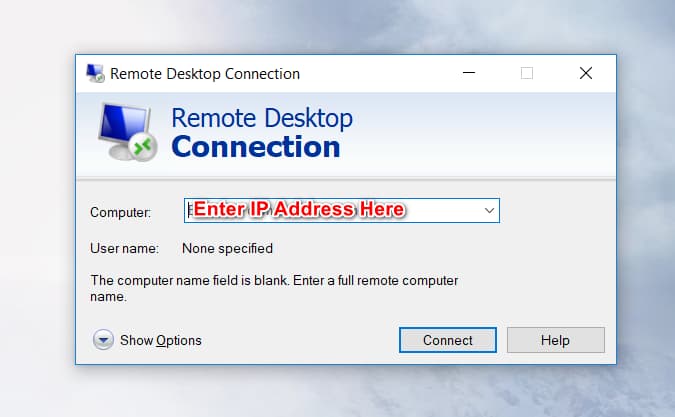
Step 2. Enter the IP address (number similar to 110.110.110.110) which you have received in the email (Please make sure you have waited for 10 to 15 minutes before your attempt to connect to the server)
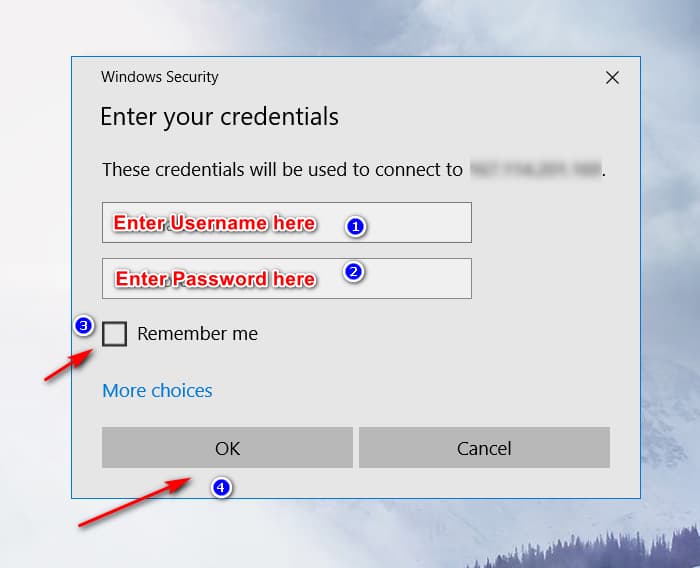
Step 3. Click ‘connect‘ and a Window like this will pop out – Enter the username and password (which you have received in the email) and press Ok
NOTE: Make sure you are not copying space with the password to avoid error, Remote Desktop Connection count space as another characters, so copy it properly
Congratulations, Now you are connected to your Windows VPS via Microsoft RDP (Remote Desktop Connection). Now you can use just like your own computer.
Your server can be on 24/7 days. If you are running a program on it then make sure you do not log off. Just disconnect it. Enjoy it ????
If you had any question related to this guide please comment below. For any problem with your VPS contact Ticketing System.
Your website richboytech.com has some issues that…